SEO for Firefox Toolbar Guide for Faster Website Analysis
In the fast-paced digital landscape, understanding how a website performs in search engine rankings is paramount for anyone involved in online content, from journalists fact-checking sources to marketing professionals optimizing campaigns. The ability to quickly assess a site’s strengths and weaknesses can be a significant advantage. This guide focuses on leveraging Firefox browser toolbars specifically for search engine optimization techniques and efficient website analysis, offering a streamlined approach to evaluating web pages without constant tab-switching or complex software.
The Need for Speed in Website Analysis
Imagine you are a journalist verifying information on a news portal, or a digital marketer preparing a competitive analysis. Waiting for multiple tools to load or navigating through endless reports consumes valuable time. Firefox, with its robust extension ecosystem, provides a powerful solution. By integrating SEO analysis tools directly into your browser, you gain instant access to critical data points, transforming what could be a lengthy process into a matter of seconds. This immediate feedback loop is crucial for making swift, informed decisions about content, structure, and overall web presence.
Why Firefox is a Go-To Browser for SEO Professionals
While various browsers offer extensions, Firefox has historically been favored by developers and SEO specialists for its strong commitment to web standards, privacy features, and, most importantly, its highly customizable and powerful add-on architecture. Its open-source nature often translates into a rich variety of extensions that can access and display a wide range of website data, making it an ideal platform for on-the-fly SEO audits and competitive research. The browser’s performance and relatively lighter resource consumption, especially when dealing with numerous tabs and extensions, further solidify its position as a preferred choice for intensive web analysis tasks.
Essential SEO Metrics for Rapid Assessment
Before diving into specific tools, it’s vital to understand what key metrics you should be looking for during a quick website analysis. A good Firefox SEO toolbar should ideally provide immediate insights into these areas:
- Page Title and Meta Description: These are critical for click-through rates and search engine understanding. A toolbar should quickly display them and flag if they are missing or too long/short.
- Heading Structure (H1, H2, H3, etc.): Proper heading use helps search engines understand content hierarchy and improves readability for users.
- Internal and External Links: Counting and checking the status of links (dofollow/nofollow) can highlight linking strategies and potential broken links.
- Image Alt Attributes: Essential for accessibility and image search SEO.
- Robots.txt and Meta Robots Tags: To ensure pages are indexed or excluded as intended.
- Canonical Tags: Preventing duplicate content issues.
- Page Load Speed Indicators: While not a full performance audit, quick indicators can highlight potential issues.
- Schema Markup Detection: Identifying rich snippets and structured data implementation.
By having these data points at your fingertips, you can quickly form an opinion on a page’s SEO health and identify areas that need deeper inspection or immediate attention.
Choosing the Right Firefox SEO Toolbar
The Firefox Add-ons store offers a diverse range of toolbars and extensions catering to SEO needs. When selecting one, consider the following functionalities:
- On-Page SEO Analysis: Tools that quickly dissect titles, meta descriptions, headings, and keyword density.
- Link Analysis: Extensions that highlight internal and external links, show dofollow/nofollow status, and can identify broken links.
- Technical SEO Insights: Features that check robots.txt, sitemap links, canonical tags, and page indexing status.
- Page Speed Diagnostics: Basic metrics or links to more detailed speed analysis tools.
- Competitor Overview: Some advanced toolbars offer quick glimpses into competitor domain authority, traffic estimates, or backlinks (though these are often limited in free versions).
- User-Friendly Interface: A clean, intuitive interface ensures that you can access data without confusion, especially during time-sensitive analysis.
It’s often beneficial to try a few different options to see which best fits your specific workflow and provides the most relevant data at a glance. Many popular SEO suites offer their own browser extensions that integrate with their paid platforms, providing even more comprehensive data for subscribers.
Step-by-Step Guide to Using a Firefox SEO Toolbar for Fast Analysis
Let’s walk through a typical process of using a Firefox SEO toolbar to conduct a rapid website analysis:
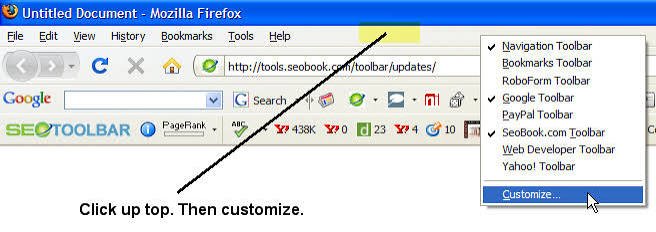
- Installation: Navigate to the Firefox Add-ons store (addons.mozilla.org) and search for “SEO toolbar” or specific tool names if you have them in mind. Click “Add to Firefox” and confirm the installation. The toolbar icon will typically appear in your browser’s toolbar.
- Initial Setup (if required): Some toolbars might ask for permissions or require a quick sign-in to an associated SEO service. Complete these steps as necessary.
- Navigate to the Target Website: Open the webpage you wish to analyze in a new Firefox tab.
- Activate the Toolbar: Click on the toolbar’s icon. A sidebar, dropdown, or overlay will typically appear, displaying various SEO metrics.
- Quick On-Page Check: Immediately look for the page title and meta description. Are they optimized? Are they within character limits? Scan the heading structure (H1, H2, etc.) to ensure logical content flow.
- Link Health Assessment: Check the number of internal and external links. Some tools highlight broken links or show nofollow attributes, which is crucial for link equity analysis.
- Technical Snapshot: Verify the robots.txt status (is the page allowed to be crawled?) and check for canonical tags. Look for any red flags regarding indexing or duplicate content.
- Performance Indicators: If the toolbar offers page speed insights, quickly review them. While not a full audit, it can tell you if there are immediate, obvious loading issues.
- Competitor Insights (if applicable): If using an advanced toolbar, glance at domain authority or traffic estimates for competitor pages to gauge their online strength.
This systematic approach allows you to gather a significant amount of data in under a minute, informing your next steps whether you’re optimizing your own content or evaluating an external source.
Benefits of Integrating Toolbars into Your Workflow
The primary benefit of using Firefox SEO toolbars is undeniable efficiency. They streamline the initial stages of website analysis, allowing for:
- Rapid Problem Identification: Spot critical SEO errors like missing titles or broken links instantly.
- Improved Productivity: Less time spent switching between applications and more time focusing on content creation or strategic planning.
- Competitive Edge: Quickly analyze competitor pages to understand their strategies and identify opportunities.
- Enhanced Learning: Constantly seeing SEO metrics helps reinforce best practices and deepens your understanding of how various elements impact search visibility.
- Informed Decision Making: Make quicker, data-backed decisions about website improvements or content adjustments.
Limitations and Best Practices
While incredibly useful, it is important to remember that Firefox SEO toolbars provide a high-level overview. They are excellent for initial checks and rapid diagnostics but should not replace comprehensive audits using dedicated SEO software. For deep dives into keyword research, backlink profiles, technical crawling issues, or in-depth performance analysis, you will still need more specialized tools.
Best practices include:
- Combine Tools: Use toolbars for quick checks and then cross-reference findings with more powerful platforms when necessary.
- Stay Updated: Ensure your toolbars are always the latest version to benefit from new features and bug fixes.
- Understand the Data: Don’t just look at numbers; understand what each metric signifies and its impact on SEO.
- Context is Key: Analyze data within the context of the website’s goals and target audience.
Conclusion: Empowering Your Web Analysis with Firefox Toolbars
For anyone serious about digital presence management, mastering the use of Firefox SEO toolbars for faster website analysis is an invaluable skill. These browser extensions democratize access to critical SEO data, putting powerful diagnostic capabilities directly into the hands of journalists, marketers, and web administrators alike. By integrating these efficient tools into your daily workflow, you can save significant time, quickly identify opportunities and issues, and ultimately contribute to a more optimized and successful online experience. The digital world moves fast, and with the right tools in your Firefox browser, you can keep pace and stay ahead.