Syncing with iCloud Paused How to Fix the Problem Quickly
In the digital age, our devices are often the central hubs of our lives, and services like Apple’s iCloud are designed to keep everything seamlessly connected. From cherished family photos to important work documents, iCloud promises easy access and secure backups. So, when a message pops up saying, “Syncing with iCloud Paused,” it can be more than just an inconvenience; it can be a roadblock, causing anxiety and disrupting workflows. This common issue leaves many users wondering why their digital life has suddenly hit a snag and, more importantly, how to fix it quickly.
The “Syncing with iCloud Paused” notification typically appears when your iPhone, iPad, or Mac encounters a hiccup in its connection to Apple’s cloud servers. It’s Apple’s way of telling you that data transfer has halted, preventing new files, changes, or updates from being uploaded or downloaded. While frustrating, it’s often a temporary state, and resolving it usually involves a series of straightforward troubleshooting steps. Understanding the root causes is the first step toward getting your digital world back in sync.
Understanding Why iCloud Sync Pauses
Before diving into solutions, it helps to understand the common culprits behind this pausing phenomenon. Identifying the potential cause can often lead you directly to the quickest fix.
- Network Instability: A weak, intermittent, or non-existent internet connection is perhaps the most frequent reason. iCloud requires a stable connection to upload and download data efficiently.
- Insufficient Device Storage: While iCloud storage is separate, your device still needs local space to process and temporarily store data before it’s fully synced to the cloud. If your device is critically full, syncing can halt.
- Outdated Software: Bugs in older iOS, iPadOS, or macOS versions can sometimes interfere with iCloud functionalities. Keeping your software updated is crucial.
- Apple Server Issues: Occasionally, the problem isn’t on your end. Apple’s servers, though highly reliable, can experience outages or maintenance periods, affecting various services, including iCloud.
- Incorrect iCloud Settings: Sometimes, specific app settings or general iCloud settings might be misconfigured, preventing certain data types from syncing.
- Too Many Files or Large Files: Attempting to sync an extremely large number of files or very large individual files simultaneously can sometimes overwhelm the system and cause a temporary pause.
Quick Solutions to Get iCloud Syncing Again
When faced with the dreaded “Syncing with iCloud Paused” message, patience and a systematic approach are your best allies. Here’s a detailed guide to troubleshooting the problem efficiently, designed for users who want to restore seamless syncing without delay.
- Verify Your Internet Connection: This is the absolute first step. Ensure you are connected to a stable Wi-Fi network or have a strong cellular data signal. Try opening a web page or another internet-dependent app to confirm connectivity. Sometimes, simply toggling Wi-Fi off and on, or switching to cellular data and back, can refresh the connection.
- Restart Your Device: The classic IT advice holds true for a reason. A simple restart can often clear temporary glitches, refresh system processes, and resolve minor software conflicts that might be preventing iCloud from functioning correctly. Power down your iPhone, iPad, or Mac completely, wait a minute, then turn it back on.
- Check Apple’s System Status Page: Before you spend too much time troubleshooting your own device, it’s wise to check if the issue is widespread. Apple provides a system status page that lists the current operational status of all its services, including iCloud Drive, iCloud Backup, and iCloud Photos. If there’s an outage, all you can do is wait for Apple to resolve it. This check can save you a lot of unnecessary effort.
- Update Your Device Software: Outdated software can be a significant source of compatibility issues. Ensure your iPhone or iPad is running the latest version of iOS/iPadOS, and your Mac is on the newest macOS. Navigate to Settings > General > Software Update on mobile devices, or System Settings > General > Software Update on a Mac. Install any pending updates.
- Review Your iCloud Storage: You might have ample device storage but be low on iCloud storage. If your iCloud storage is full, new data simply cannot be uploaded. Go to Settings > [Your Name] > iCloud on iOS/iPadOS, or System Settings > [Your Name] > iCloud on macOS to check your usage. You might need to delete old backups, unwanted photos, or upgrade your iCloud storage plan.
- Sign Out and Back In to iCloud: This is a powerful troubleshooting step. Signing out of iCloud on your device and then signing back in can often resolve persistent syncing issues by refreshing your authentication tokens and connection to Apple’s servers. Be aware that signing out may temporarily remove some iCloud data from your device, which will redownload upon signing back in. Navigate to Settings > [Your Name] and scroll down to “Sign Out.” On a Mac, it’s System Settings > [Your Name] and then “Sign Out.”
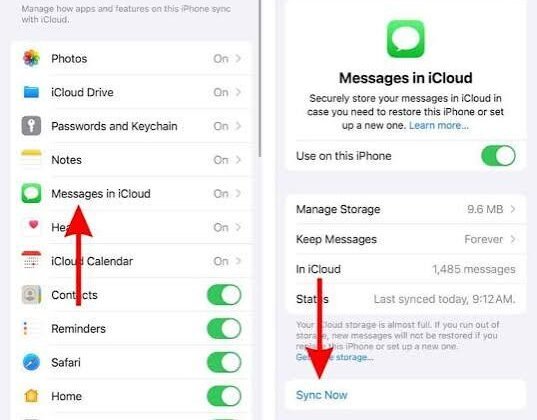
- Check App-Specific iCloud Settings: Sometimes, syncing is paused for specific apps, not all of iCloud. Go to Settings > [Your Name] > iCloud > Apps Using iCloud and ensure that the toggle is enabled for the apps you expect to sync. On a Mac, this is System Settings > [Your Name] > iCloud > iCloud Drive > Apps Syncing to iCloud Drive.
- Disable and Re-enable iCloud Drive (or specific services): For issues specifically with files and documents, try toggling iCloud Drive off and on. You can do this within the iCloud settings. For photos, you might toggle iCloud Photos off and on. This can sometimes kickstart a stalled sync process.
- Reset Network Settings: If you suspect network issues are more deeply rooted in your device’s configuration, resetting network settings can help. This will erase all Wi-Fi passwords, cellular settings, and VPN configurations, so you’ll need to re-enter them. On iOS/iPadOS, find this under Settings > General > Transfer or Reset iPhone/iPad > Reset > Reset Network Settings.
- Contact Apple Support: If you’ve tried all the above steps and your iCloud syncing remains paused, it might be time to seek professional assistance. Apple’s support staff have access to diagnostic tools and deeper insights into potential account-specific issues. You can reach out to Apple customer support through their website, phone, or by visiting an Apple Store. Be prepared to explain the steps you’ve already taken.
Preventative Measures for Future Smooth Syncing
While fixing a paused sync is important, taking steps to prevent it from happening again can save you future headaches. Regularly check your internet connection for stability, especially when initiating large uploads. Make sure your devices are always updated to the latest operating system versions, as these often include bug fixes and performance improvements for iCloud services. Monitor your iCloud storage usage and upgrade your plan if you consistently find yourself running low. Furthermore, periodically review which apps are using iCloud and disable syncing for those you no longer need. This keeps your cloud storage clean and efficient.
Being mindful of large file transfers can also help. Instead of dumping hundreds of gigabytes of photos at once, consider doing it in smaller batches if you have a less robust internet connection. Also, occasionally restarting your devices, even when everything seems fine, can help maintain optimal performance and prevent minor glitches from escalating into larger problems.
Conclusion: Keeping Your Digital Life Flowing
The “Syncing with iCloud Paused” message is a common, albeit frustrating, interruption to our increasingly interconnected digital lives. Fortunately, most instances are quickly resolvable with a methodical approach to troubleshooting. By understanding the underlying causes, from network issues to outdated software or full storage, and by applying the detailed steps outlined above, users can swiftly restore the seamless flow of data across their Apple devices. A smooth iCloud experience ensures that your essential photos, documents, and settings are always accessible, backed up, and up to date, providing peace of mind in our fast-paced world. Don’t let a paused sync hold you back; empower yourself with these fixes and keep your digital world flowing freely.